> For the complete documentation index, see [llms.txt](https://www.unrealsharp.com/llms.txt). Markdown versions of documentation pages are available by appending `.md` to page URLs; this page is available as [Markdown](https://www.unrealsharp.com/getting-started-and-fundamentals/quickstart.md).
# Setup
Get setup and running with your first project using UnrealSharp
## Prerequisites
Unreal Engine 5.6 - 5.8
Install the [required build tools](https://dev.epicgames.com/documentation/en-us/unreal-engine/setting-up-visual-studio-development-environment-for-cplusplus-projects-in-unreal-engine) for developing with C++ in UE5
C++ UE5 Project (Highly recommended but not required. See warning under "**Compiling UnrealSharp**")
Install [.NET 10.0 SDK](https://dotnet.microsoft.com/en-us/download/dotnet/10.0) (10.0.5+)
## Clone UnrealSharp to your project
Clone [this ](https://github.com/UnrealSharp/UnrealSharp)repo and place **UnrealSharp** in the **ProjectRootDirectory/Plugins** folder (make the Plugins folder if it doesn’t exist) in your Unreal Engine project.
```
git clone https://github.com/UnrealSharp/UnrealSharp.git
```
## Compiling UnrealSharp
Compile the Unreal Engine project using the IDE of your choice. UnrealSharp will automatically generate bindings and compile them as part of the C++ build process.
{% hint style="danger" %}
Avoid compiling the plugin by clicking on the .uproject file. It introduces several issues, such as outdated binaries even when the source code has changed, which complicates debugging and support.
If you do choose this option, you need to remove **Binaries/Intermediate** folders in the **project/UnrealSharp** folder, whenever you fetch a new version of the plugin from Git.
{% endhint %}
## Launching UnrealSharp
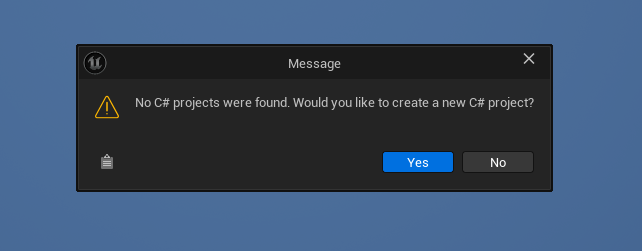
Launch your Unreal Engine project through the **solution file** or **.uproject**. Once Unreal Engine has fully opened, this prompt should appear:
Press **Yes** and the **Create C# Project** menu should appear like this:
The C# solution should open when the project has been created, and now you're all set to start coding with UnrealSharp. Visit the page below for a scripting introduction:
{% content-ref url="/pages/ZGjytdz7AKP6n4UO6D3i" %}
[Your First Script](/getting-started-and-fundamentals/your-first-script.md)
{% endcontent-ref %}